
How to Make an Oouuh AI Video from Two Photos
Follow the real Oouuh AI workflow: choose two portraits, assign roles, add a background and song topic, select video settings, then generate and download.
Last updated: 2026-10-20
Before you start
You need two distinct portraits that you have the right and consent to use. JPEG, PNG and WebP are supported, up to 10 MB per image. Pick a clear, well-lit face in each photo. Avoid group photos, heavy occlusion, extreme side angles and a tiny face within a large scene. These are practical input recommendations, not a guarantee of likeness.
You can explore the generator before signing in. Sign in to upload private photos, buy credits and generate. Watch the real sample with sound first: this product makes original music, not the original commercial Oouuh recording.
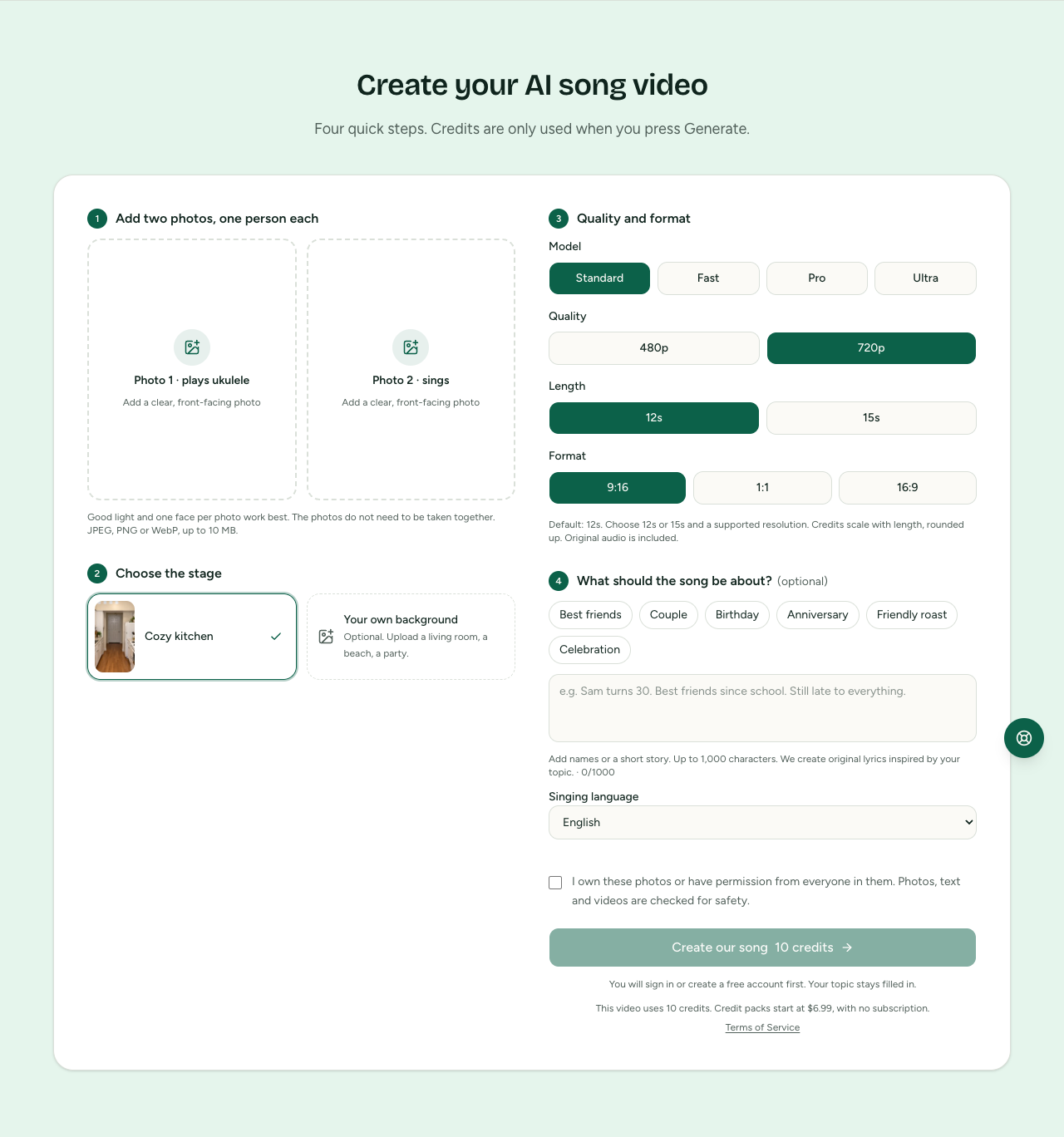
The public generator on October 20, 2026. Sign in to upload private photos and generate. Current prices and availability are shown in the live form.
1. Assign the two roles
Put the ukulele player in the left / photo 1 slot, and the singer in the right / photo 2 slot. Use a different portrait in each slot. Only the right performer is intended to sing. If the roles look wrong, check the upload order before submitting another task.
2. Choose the scene
Keep the default kitchen or upload one optional background image. A room or outdoor setting with space for two people is a useful starting point. Avoid extra people in the background. It is an environment reference, not a promise of pixel-for-pixel scenery.
3. Describe the song
Enter a topic of up to 200 characters. For example: “Two best friends celebrating years of shared road trips and terrible jokes.” Choose the singing language separately. The topic guides generated lyrics; it is not a field for uploading a song recording or guaranteeing an exact script.
4. Review the video settings and cost
Choose a model, an available resolution, a 12- or 15-second duration, and 9:16, 1:1 or 16:9 framing. Some resolutions are unavailable for some models. The generator shows the credit cost for your selection; the pricing page compares models. A short clip has limited space for lyrics, so focus on a single hook.
5. Generate once and follow the status
Confirm that you have permission to use the photos. If necessary, purchase a one-time credit pack, then return to the generator and check the restored options before generating. Credits last 365 days from grant. Keep the task ID if you need support.
Uploads expire after 24 hours. A photo with less than two hours remaining must be uploaded again before a new generation. If a task is still processing or its submission is uncertain, do not repeatedly submit it. A confirmed failure returns credits once to their original batches and original expiry dates; a timeout alone is not a confirmed failure.
6. Preview, listen and download
When processing and moderation finish successfully, play the video, enable sound, check both roles and download the MP4. Saved videos remain available for 30 days; download yours before expiry. A blocked or pending moderation result cannot be downloaded.
For unclear faces, swapped roles, silence or a delayed task, use our photos, roles and audio troubleshooting guide. Contact support with the task ID for account-specific issues.